Start with search, selection and a second page
A PDF is a container for page content. A page can hold real text, a picture of text, or both. A scan may already contain an OCR text layer, and a file assembled from different sources may change type from page to page. Its filename and appearance do not tell you which case you have.
- Search for an exact visible phrase. Choose a distinctive label or reference number from the page. A successful search shows that your viewer can find that string; it does not prove that every field is correct.
- Copy a short passage into a plain-text editor. Compare numbers, punctuation, spacing and reading order with the visible page. Use text-selection mode rather than a rectangle or snapshot tool.
- Repeat on representative pages. Check a later page, a table, a rotated scan and any inserted image. A selectable first page says nothing about a scanned attachment.
If search or copy fails, try another trusted viewer and check document permissions. Image-only content is one possible cause; selection settings, font encoding and restrictions can also affect the result. A viewer with built-in OCR may recognize an image dynamically without changing the underlying PDF.
Download four files with known behavior
All visible sample pages use the same fictional order: 18 panels × USD 12.50 = USD 225.00. That makes it possible to separate the appearance of the page from the data copied out of it. The files contain no real customer information.
Download all four PDFs and expected results (203 KB ZIP)
1. Native digital text
One page built with visible text objects. Search and copy should work in a conventional PDF viewer.
Download digital-text.pdf (4 KB)2. Image only
The same page rendered to an image, with no underlying text objects. A viewer may offer its own OCR.
Download image-only.pdf (76 KB)3. Mixed document
Two similar-looking pages: the first contains native text; the second is an image only.
Download mixed-pages.pdf (79 KB)4. Deliberately wrong text layer
The visible image says 18 panels. The hidden, selectable quantity says 13 panels.
Download mismatched-layer.pdf (77 KB)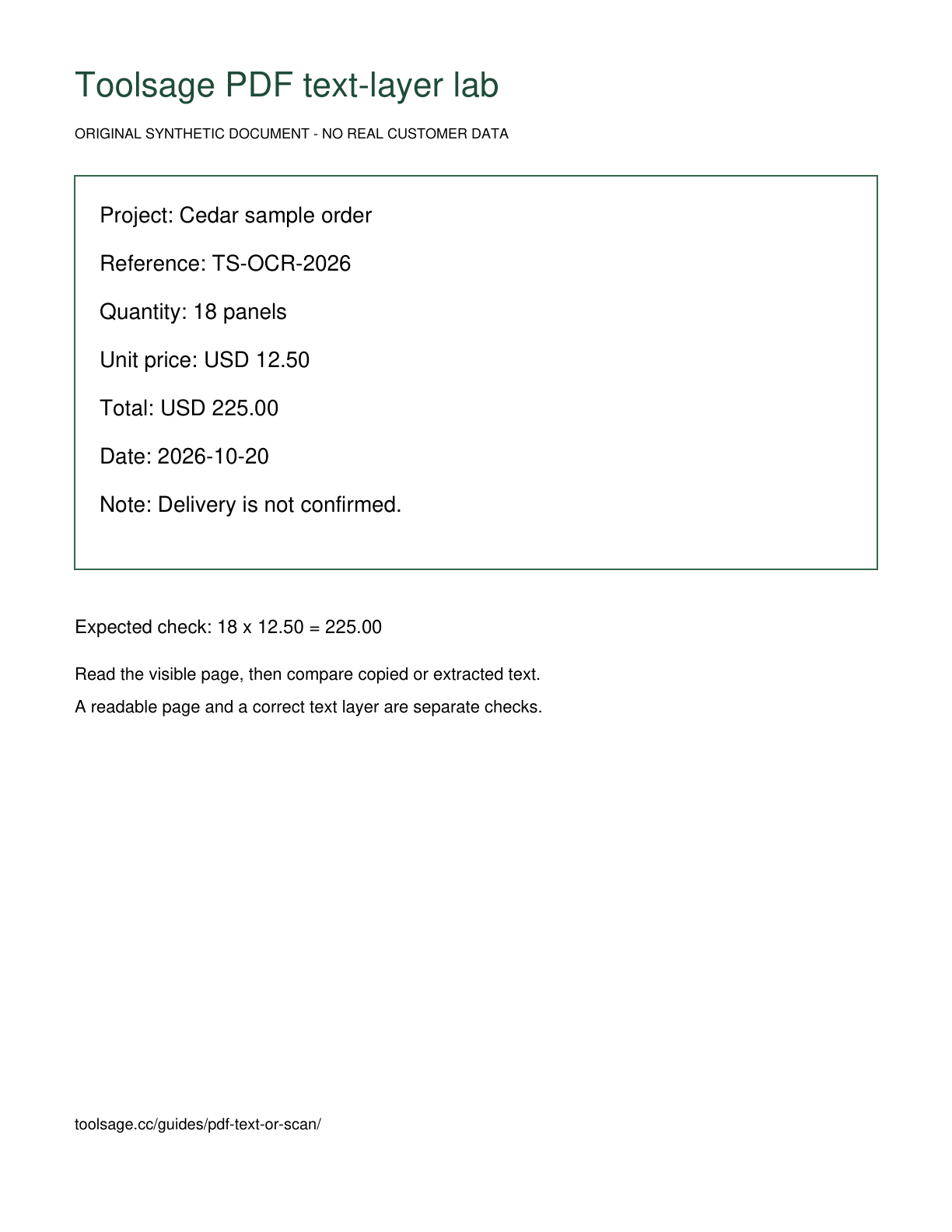
For a repeatable record, download the expected-results CSV or sample manifest with file hashes and extracted text.
Compare your result with the expected text layer
| File | Underlying text | Quantity copied from text objects | Useful next check |
|---|---|---|---|
| digital-text.pdf | Page 1 | 18 panels | Compare the copied fields with the page. |
| image-only.pdf | None | No extractable text | Try OCR on a working copy. |
| mixed-pages.pdf | Page 1 only | 18 panels on page 1; none on page 2 | Check the scan separately. |
| mismatched-layer.pdf | Invisible text on page 1 | 13 panels, despite visible 18 | Correct the layer before relying on its data. |
These expectations describe the actual text objects in the supplied files, verified with two PDF parsers. A viewer that performs automatic OCR can produce a different search or copy result for the raster pages. Record the viewer and whether its recognition feature was enabled rather than treating that difference as a broken sample.
Selectable text can still be wrong
Open the fourth file and compare the quantity you see with the quantity you paste. The image says 18; the constructed text layer says 13. The amount provides a second clue: 18 × 12.50 = 225.00, while 13 × 12.50 = 162.50. A successful search, an attractive page and a correct total copied in isolation can hide an incorrect quantity.
This is why an OCR result needs field-level review. Compare names, decimal separators, dates, currency, negative signs and reference numbers with the source. For a table, check that a value is still paired with the correct row and column. OCR makes text searchable; it does not establish that a number or statement is true.
Do not simply append another text layer to a file whose existing layer is wrong. Keep the original and use a tool's documented correction or replacement process on a copy. Recheck search and copy after saving the result.
Choose the next action from the evidence
- Accurate native text: If you need a DOCX draft, compare a representative conversion. Check paragraph order and tables as well as whether the output opens.
- Image-only page: Use OCR with the appropriate language and page range, then compare the recognized fields with the image.
- Mixed file: Inspect pages individually. Preserve the original digital content where possible rather than assuming the entire document needs the same treatment.
- Wrong text layer: Repair or recreate that layer and verify the changed fields before extracting totals or importing data.
Adobe's desktop OCR instructions explain page-range and language selection, followed by a review of recognized text. This is a desktop workflow; it does not establish what a free browser tool includes. PDF24's OCR page provides an online route and points to Creator as an alternative. Check where your file is processed and your organization's rules before choosing an upload route.
Next, use our PDF-to-Word conversion checklist, PDF24 workflow guide or Acrobat Online action guide. The PDF category separates these tasks from readers, scanners and page organizers.
Keep a short result record
A useful five-minute check
- Write the file name, viewer, version and whether automatic OCR is on.
- Record the pages tested and exact phrases searched.
- Paste the quantity, unit price, total and note into plain text.
- Compare each field with the visible page and recompute the sample total.
- Save the changed document under a new name, reopen it and repeat.
For a real document, add fields that matter to your task. A price list needs decimal and currency checks; a research paper may need column order and citations; a signed form may need a workflow that preserves signatures. The sample pack is a teaching aid, not an accessibility, archival or signature-validity test.
Sources and how the samples were made
Toolsage generated the first page as native PDF text, rendered it at 144 dpi for the image sample, combined those pages for the mixed file, and added an invisible, deliberately incorrect quantity for the mismatch example. Page counts and extracted fields were checked with PyMuPDF and pypdf on October 20, 2026; rendered appearances were compared. No commercial OCR engine was run to obtain these examples.
The guide's product references were checked on October 20, 2026. They support the documented OCR routes, not a claim about comparative accuracy, pricing or speed.
Read our evidence standard or report a sample or instruction that does not match your result.